How to Watch an Interesting YouTube Video with a Friend
August 23, 2026
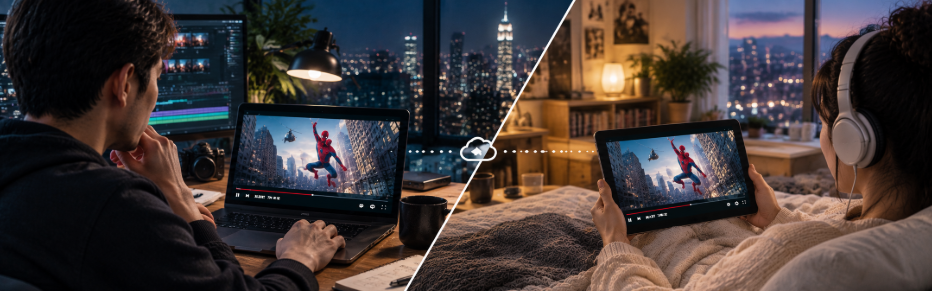
Movie night with friends who live somewhere else sounds simple until you try it. Someone can't install the app, someone else never finishes signing up, and by the time everyone is in the room the mood is gone.
BoaBa takes the other approach: you share, and your friends open a link. That's the whole thing. Here's how to run a watch night from start to finish.
Three steps
1. Press Start Screen Sharing. No sign-up, nothing to download. We reserve a channel for you — usually two or three seconds — and drop you straight into the sharing room.
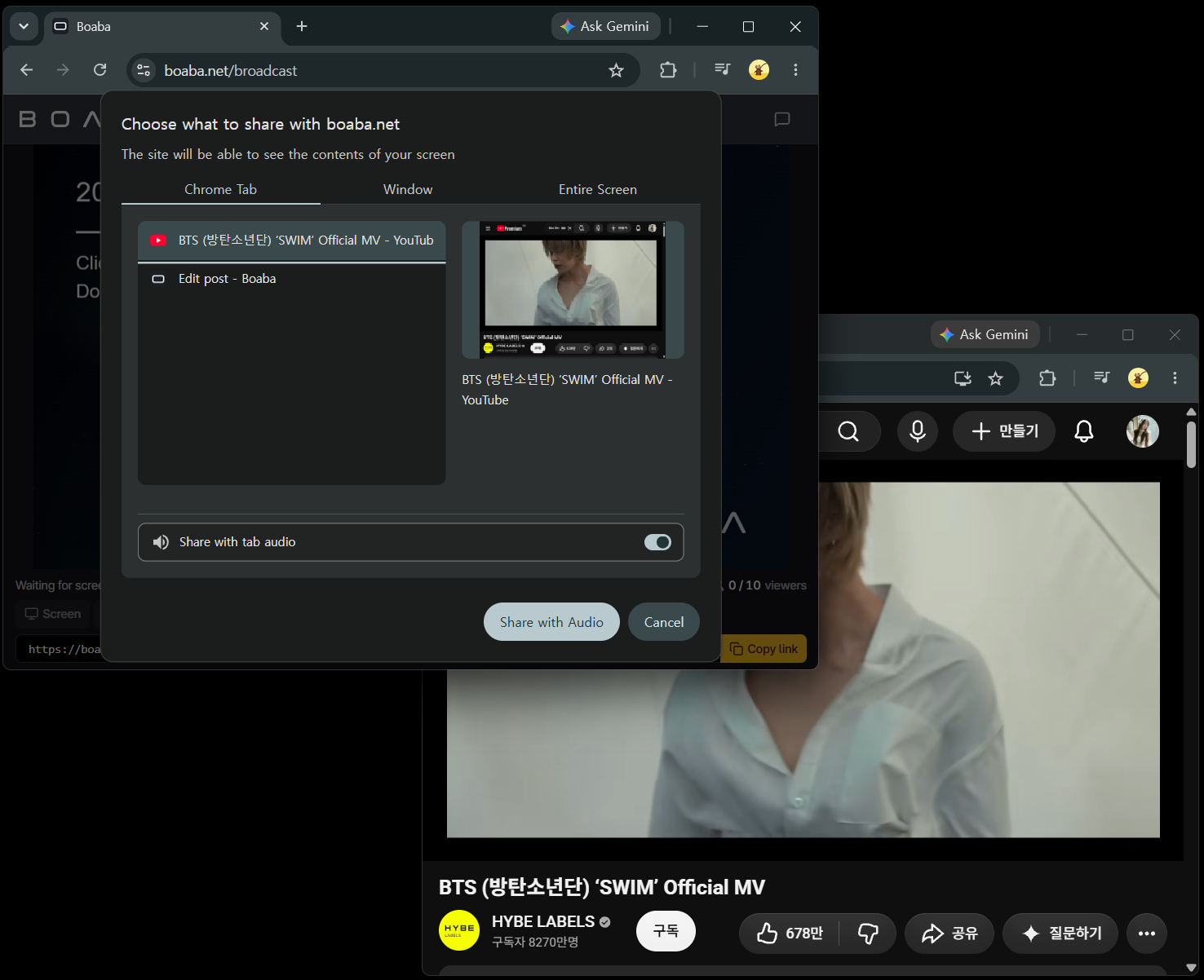
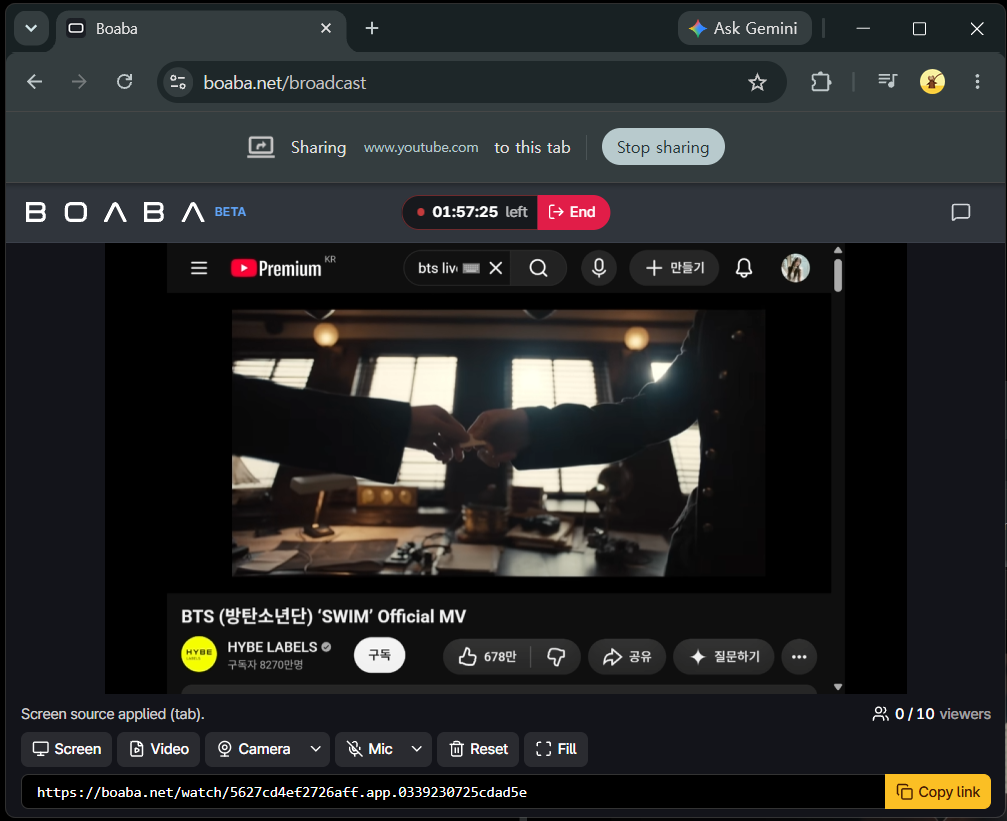
2. Pick what to share. Use the buttons under the preview: Screen for your entire screen, a single window, or one browser tab. Video to play a video file straight from your computer. Camera for your webcam. Mic whenever you want to talk over it.
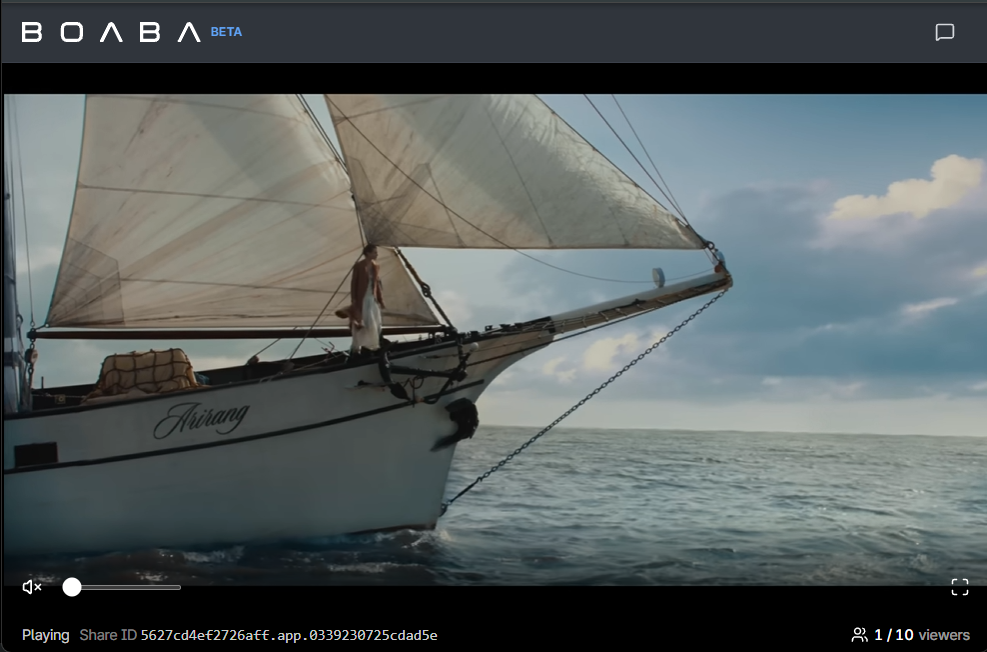
3. Copy the link and send it. The share link sits at the bottom of the room with a Copy link button next to it. Paste it into your group chat. Your friends open it in whatever browser they already have — phone, laptop, tablet — and they're watching. No account, no install, no waiting room.
Everything past that point is optional polish.
What you can share
- A browser tab — YouTube, Vimeo, a live event, a sports feed. Tabs are the cleanest option, because tab audio comes along reliably on every desktop OS.
- A video file on your computer — pick it with Video and it plays inside the room. You get play, pause, and a seek bar; your friends see exactly what you do, at the point you're at.
- A window or your whole screen — a game, a photo folder, a slideshow, a design you want an opinion on.
- Your camera — on its own, or switched in when you want your friends to see your reaction.
You share one source at a time, and you can switch whenever you like — from a tab, to a file, to your camera — without the link changing. Nobody has to rejoin. That means you can open with your camera to say hi, switch to the movie, and switch back when it's over.
Getting the sound right
Sound is where most watch nights fall apart, so it's worth 30 seconds of attention.
- Share a tab and tick Share tab audio. That's the reliable path in Chrome and Edge.
- Sharing your entire screen also carries system audio on Windows — but on macOS it usually doesn't. On a Mac, share the tab.
- Audio is captured raw. Echo cancellation, noise suppression and auto gain are all switched off for the video's audio, because those are built for voices and they mangle music and effects. What your friends hear is what's actually playing.
- Your mic mixes on top. Turn Mic on and you can talk over the video without ducking or cutting into it.
Little things that make it better
- Zoom in. Drag to move the picture and zoom in on the part that matters — the screen is sampled at your monitor's native resolution, so zooming into a corner stays sharp instead of turning into mush. Fit puts it back; double-click resets to original size.
- Watch the viewer count. The room shows how many people are connected right now, so you know when everyone's actually arrived and you can start.
- Use the chat. Live chat is built into the room for both you and your viewers — no second app for reactions.
- Turn on Do Not Disturb first. Every notification you get is a notification your friends read.
- Share a window instead of the whole desktop when you can. Fewer accidents, and the picture quality goes into the video instead of your taskbar.
- Check your upload speed, not your download. The video goes out from your machine. A steady 5 Mbps up is comfortable.
- Tell people they're a couple of seconds behind you. That's normal for any live stream. Worth mentioning so nobody spoils a scene in the chat.
Why this works so well for watching together
Your friends need nothing. No account, no app, no extension. A link in a group chat is the entire onboarding, which means the person who "isn't good with computers" is watching too.
One player, so nothing drifts. You're not keeping several video players in sync — everyone is watching yours. When you pause, everyone pauses. When you skip back to catch a line, everyone skips back with you.
It works on the phones people actually have. Viewers just open the URL in their browser.
Nothing is stored. What you share is never recorded — it's relayed in real time, over HTTPS, and the share link is single-use: when your session ends, it stops working. Nothing to delete afterwards, because nothing was kept.
You stay in control of the room. Switch sources, zoom, mute your mic, end it whenever. Close the tab and the whole thing is gone.
It's free. Sharing your screen costs nothing and always will.
FAQ
Do my friends need an account? No. They open the link in a browser.
Can they watch on a phone? Yes — the viewer page works in mobile browsers.
Can I share the sound from a video? Yes. Share the browser tab with Share tab audio ticked, or share your entire screen on Windows. On macOS, use the tab.
Is anything recorded? No. The stream is relayed live and never stored, and the link is destroyed when the session ends.
Can I stop sharing my screen but keep the room open? Yes. If you hit the browser's Stop sharing, the room stays up — pick a new source and carry on.
Ready when you are
Open boaba.net, press the button, pick your screen, send the link.